What are Info Pages
Your Djangify eCommerce Site comes pre-configured with all required pages like your homepage, customer contact form, and product listings ready to be set up.
Part of these important documents live under the title of INFOPAGES in the menu. Info pages contain important information related and documentation and policies. You can add documentation pages such as FAQs to help your customers understand how your site works. The pages will look exactly like this one.
We have added dummy content for policy pages. It is essential you UPDATE THESE PAGES IMMEDIATELY.
Open the Info Pages Section
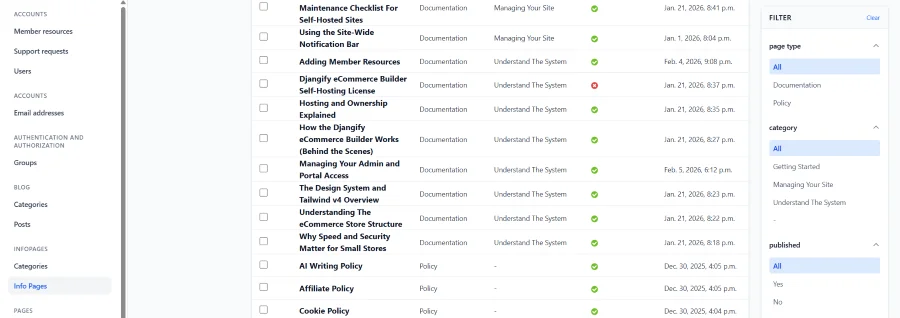
Log in to your Admin Dashboard and click Info Pages in the left-hand menu. You will see a list of all existing pages if you have added any or a button to add a new page. When added a new page you can select from policy and documentation. A category is also available to include your documentation in different categories.
-
Policy – default legal and trust pages (e.g. Privacy Policy, Refund Policy, Terms of Use).
-
Documentation – support or information pages such as “How to Download Your Files” or “Frequently Asked Questions.”
You can edit existing pages or create new documentation pages in this area.
Creating a Documentation Page (for example, an FAQ)
If you want to help customers with common questions or provide instructions, you can create a documentation page.
-
In Info Pages, click Add Info Page.
-
Title: Write something clear like “Frequently Asked Questions.”
-
Page Type: Choose Documentation.
-
Category: Optional – you can leave blank or group similar help pages together.
-
Content: Use headings (H2 or H3) for each question.
Example layout inside the content editor:
<h2>How do I access my downloads?</h2>
<p>After checkout, you will receive an email with your secure download link. You can also log in to your dashboard to download your files again later.</p>
<h2>Can I request a refund?</h2>
<p>Because digital files are delivered instantly, refunds are not offered once a product has been downloaded. If you have issues accessing a file, contact support for help.</p>
Each H2 or H3 heading automatically appears at the top of the page as a clickable link, creating a built-in Table of Contents that scrolls readers down to the matching section.
You do not need to add numbers — they are created automatically.
Arranging Pages
-
Use Policy only for official legal documents (Refunds, Privacy, Cookies, Terms etc).
-
Use Documentation for anything that helps your customers or explains your site’s features.
-
Policy pages are required for compliance and site trust so it is important you include them.
-
A date is added to each page once it is created. It will update if you change anything on the page.
Adding documentation to categories
Help documentation can grow quickly, so you can group related pages into categories — for example "Getting Started," "Your Account," or "Orders and Downloads." On a documentation page, simply choose a category (or create one) and that page is grouped with the others that share it on the documentation hub, making it far easier for customers to find what they need.
Categories are for documentation. Policies are few in number and sit together on their own index, so they do not need categorising. If you leave a documentation page without a category it still works and still appears in the hub — a category just gives it a tidier home once you have several related pages.
Asking an AI to write a page
Drafting policies and help articles with an AI is a great shortcut, but there is one rule that matters for this store: do not let the AI put numbers in the headings. Each Info Page automatically builds a numbered "Contents" list from your H2 and H3 headings. If a heading already begins with a number, you end up with the number twice — "1. 1. Introduction" — and the contents list looks broken.
So always ask for plain, unnumbered headings. You can copy and paste the prompt below, filling in the parts in brackets, and paste the result straight into the page content.
Potential AI Prompt (used at owners own risk - create one that fits with your business)
---
Write a [privacy policy / refund policy / help article about X] for my online store.
Business details:
- Business name: [your business name]
- What I sell: [e.g. digital download products]
- Contact email: [your email]
- Country/jurisdiction: [your country]
- Payment processor: Stripe
- [add any other relevant details]
Formatting rules — follow these exactly:
- Use <h2> for main sections and <h3> for sub-sections.
- DO NOT number the headings. Write "Introduction", not "1. Introduction".
My website adds the numbering automatically, so numbers in the headings
would appear twice.
Fill in my business details above — do not leave placeholders.
---
After pasting the result, read it through, check every detail is correct for your business, and save.
A note on legal compliance
The policy templates and any AI-generated policy are starting points, not legal advice. Laws around privacy, cookies, refunds, and consumer rights vary by country and change over time, and what is adequate for one business may not be for another. You are responsible for making sure your policies are accurate, complete, and lawful where you operate and where your customers are. Before you rely on any policy on your live store, have it reviewed by a qualified legal professional who can advise on your specific situation.
Quick Checklist
☑ Open Info Pages
☑ Update each policy with your business details
☑ Add optional documentation pages (e.g. FAQ)
☑ Use headings to create automatic links
☑ Keep pages clear, accurate, and up to date