You have downloaded Djangify Content Blocks Premium. This page takes you from the download to your first working block, one step at a time. It covers what is in the download, how to ask an AI assistant to write the blocks for you, and the one script that other websites need to add.
The blocks work with any AI assistant: ChatGPT, Claude, Gemini, Codex or another one. Your AI does not need special access to your site. It reads one skill file and writes plain HTML for you to paste into an article.
- On a Djangify shop there is nothing to install. The script is already there, so you can start using the blocks straight away.
- On any other website you add one script file once and give your AI your brand shades.
- It works with any AI assistant. Give it the skill file and your text, then name the block you want.
- You never paste a script into an article. Your articles hold plain HTML, and the script does the rest.
- Reader progress is saved in the reader's own browser. You never see it and nothing is sent anywhere.
What you get in the download
Your download is one folder of files. Unzip it into a permanent place, not your Downloads folder, and keep the files together.
| File | What it is | When you use it |
|---|---|---|
start-here.html | The three setup steps as a checklist you can tick off | First, in your browser |
content-blocks-premium.js | The script. The styles are built in | Only on a website that is not Djangify (step 2) |
djangify-content-blocks-premium.md | The AI skill file | Every time you ask your AI for a block |
examples.html | All seven blocks working | Open it in a browser to try them |
Djangify-Content-Blocks-Premium-Cheat-Sheet.pdf | All 26 blocks by their exact names, with the rules that save time | Keep it open next to your AI chat |
INSTALL.md | The same setup steps as plain text | If you prefer reading to ticking |
LICENSE.md | The terms of use in plain English | Before you use the files on a client site |

Djangify Content Blocks Premium
Seven interactive blocks for articles, info pages and sales pages, an AI skill file that works with any AI, and one script you add once. See what is included and the price in the shop.
See Content Blocks Premium →It works with any AI
The skill file is a plain text file that teaches an AI assistant how each block is written. Any assistant that can read a file, or a pasted block of text, can use it.
Attach djangify-content-blocks-premium.md to your chat, or paste its text in. Then paste your article text and name the block you want.
An assistant connected to your Djangify shop through the connector can update the post for you. Any other assistant gives you the HTML in a code box, and you paste it into the editor's source code view in step 5.
You never need to give your AI a password or a key for this. If an assistant asks for one, say no.
What your AI will and will not do
The skill file gives your AI a short set of rules, so the blocks come out the same way every time. You do not need to check any of this yourself.
The rules in the skill file
Your AI will
- Give every block and every item its own fixed id, so a reader's saved progress survives later edits.
- Use real links from your shop in quizzes.
- Say honestly that progress is saved in the reader's own browser.
Your AI will not
- Put script, style or form code inside an article.
- Change an id once the page is live.
- Make up a link.
Before you start
Have these ready
- Download the packYou get the files straight after purchase.
- Unzip it into a permanent folderNot your Downloads folder. Keep all the files together.
- Choose an AI assistantChatGPT, Claude, Gemini, Codex or another one.
- Know which kind of site you haveA Djangify shop already has the script. On any other site you add one line in a footer code or custom code area.
- Know where you edit your articlesYou need an editor with a source code view. The Djangify editor has one.
Step by step: from download to your first block
Tick Done on each step. Your ticks are saved in this browser, so you can stop at any point and come back.
Six steps to your first block
- Open start-here.html and examples.htmlDouble-click each file to open it in your browser. examples.html shows all seven blocks working, so you know what you are aiming for.
- Add the script (not needed on Djangify)Djangify shops already have it, so tick Done and move on. Other websites add it one time and never again.
Djangify shop
Nothing to do. Every Djangify shop already has the script, whether it is on managed hosting or self-hosted. Your blocks work straight away, so tick Done and go to step 4.
Another website
Put
content-blocks-premium.json your site and note its address. Most site builders have a files or media area. Then add this line once, in the area your site builder gives you for code that runs on every page (often called footer code, code injection or custom code):<script src="https://YOUR-SITE/content-blocks-premium.js" defer></script>Not sure where that area is? Ask your AI: "Where can I add one line of code to every page of my site?"
Wrapping your article text in
<div class="page-content">is optional. If you do, the Stats Bar counts only that part of the page, which gives a better reading time. - Tell your AI your brand shadesOn a Djangify shop, skip this step and tick Done. The blocks already follow your theme.
Show me how, on another site
Open
djangify-content-blocks-premium.mdand fill in the brand table near the top with your shades as hex codes. The same table has two optional rows for your font and text size. Give the whole file to your AI with the brand prompt in the next section. It writes a short snippet for you to add once to your site's CSS. - Ask your AI for your first blockGive it the skill file and some text from one of your articles, then name a block. The first block prompt below does this for you.
Which block should I start with?
A Stats Bar at the top and a Saved Checklist after the third section suit most articles. Choose the article that gets the most visitors.
- Paste the block into your articleIn your article's editor, click the Source code button, paste the HTML, press Save, then save the article.
Where is the Source code button?
It is the angle brackets icon in the editor toolbar. The two pictures in the next section show the button and the Source Code box. Before you save, copy everything in the Source Code box into a text file, so you have a spare copy. If your AI is connected to your shop and updated the post for you, tick Done and move on.
- Check it workedView the live page. The block should look styled, a tick should stay after you reload, and it should look right on your phone.
It does not look right
See the questions near the end of this page. Most problems are a block the editor changed when you saved, or a private browser window.
Plan your first block
- Which of your articles gets the most visitors?That is where a block pays off first.
- What should a reader do after reading it?A tick, a written answer, a score or a choice.
- Which block will you ask your AI for first?The table in the next sections lists all seven.
Where to paste your block
Every block goes in through the editor's source code view. Click a picture to enlarge it.
1. Click the Source code button
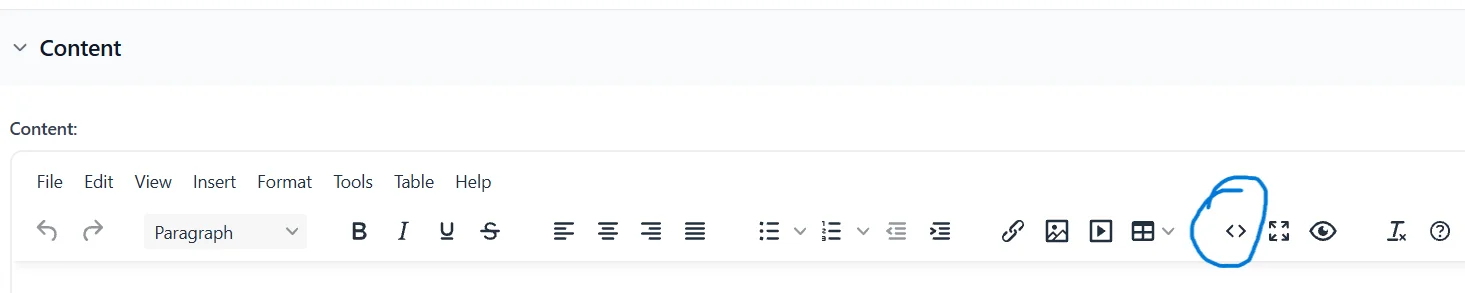
It is the angle brackets icon, circled in blue.
2. Paste into the Source Code box
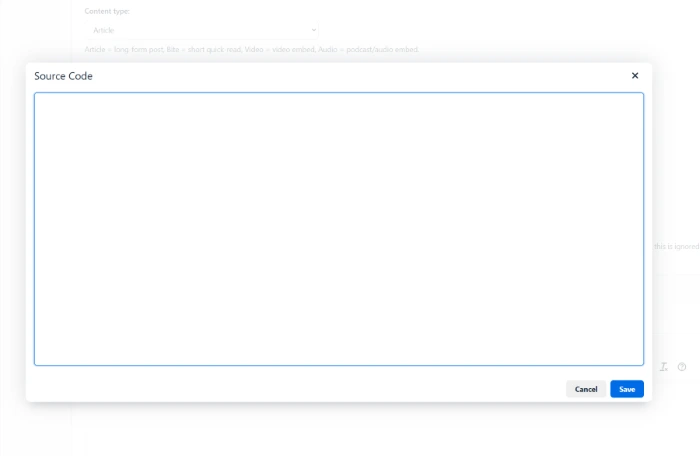
Paste the HTML, press Save, then save the article.
Prompts to copy
Paste these into your AI along with the skill file. Replace the words in square brackets with your own.
Here is the skill file for my content blocks. My brand shades are [your main hex code], [your accent hex code] and [your light background hex code]. My site's font is [your font] and its text size is [your text size]. Add these to my site as the skill file describes.
Here is the skill file for my content blocks and my article. Add a Stats Bar at the top and a Saved Checklist after the third section. Keep my wording. Give me the HTML in one code block that I can paste into the source code view.
Make the buttons a little larger and give the quiz a light green background, as the skill file describes.
The seven blocks and when to use each
| Block | The reader can | Ask your AI |
|---|---|---|
| Stats Bar | See reading time, length, last updated and level | Add a Stats Bar to the top of this article. Level is Beginner, last updated today. |
| Saved Checklist | Tick things off and see progress | Make these eight things a Saved Checklist with a message when all are ticked. |
| Guide Tracker | Work through steps in order with a progress bar | Turn the steps below into a Guide Tracker. |
| Reflect and Write | Write answers, then copy, download or print them | Turn these questions into a Reflect and Write block. |
| Scorecard | Rate themselves and see a result | Write a Scorecard of five statements with three result bands for [topic]. |
| Pick Your Path Quiz | Answer questions and be pointed to the right option | Write a Pick Your Path Quiz with three questions that points to [product A], [product B] or [product C]. |
| Switch | Choose a version and see only that one | Put the Windows and Mac instructions in a Switch. |
Two or three interactive blocks suit most articles. Too many on one screen make the page feel like homework.
Extras you can ask for
Stats Bar
- Change the reading speed. The reading time is worked out at about 225 words a minute. If your readers read more slowly or more quickly, tell your AI and it changes the speed.
Switch
- Let the reader's device choose. Ask your AI to show the Windows, Mac or Linux version automatically, so a Mac user sees the Mac steps without clicking.
- Keep switches in step. Ask your AI to link several switches, so when a reader picks Mac once, every linked switch shows Mac, on this page and on other pages.
- Choose which shows first. Tell your AI which version you want people to see before they pick.
The 19 free blocks you can use too
The premium blocks give the reader something to do. The free blocks give an article structure and make it easy to scan. Use both sets in the same article. The free blocks need no premium script, because they are plain HTML and one stylesheet, which every Djangify shop already includes. They work with any AI in the same way: give it the free skill file, then name the block.
| Block | Use it for |
|---|---|
| Key Takeaways / Summary Box | A summary of the whole article, at the top or the end |
| Contents List | Sections to jump to |
| Comparison Table | Rows and columns of facts |
| This vs That | Two options side by side |
| Two Lists | Two lists of bullets under one title |
| Facts Row | Three big numbers or short words |
| Callout | A tip, warning or single key point |
| Quote | A memorable sentence |
| Numbered Steps | Things to do in order |
| Checklist | Things to tick off (not saved, unlike the Saved Checklist) |
| Prompt Box | Text the reader should copy, with a Copy button |
| Before and After | An old version and a new version |
| FAQ | Questions and answers |
| Image Gallery | Several pictures, with click to enlarge |
| Video | A YouTube video |
| Link Row | Links to follow |
| Featured Articles | Other posts to read |
| Product Box | A product or offer |
| Note Stack | Short notes in a row, each its own shade |
Download the cheat sheet
The cheat sheet is a two page PDF that lists all 26 blocks, free and premium, by their exact names, so you always know what to ask your AI for. It also lists names that are easy to mix up and the rules for longer articles. Keep it open next to your AI chat.
Make the blocks match your brand
Every block is plain HTML styled by one set of rules. You can change how it looks and how big it is by telling your AI what you want in plain words. It makes the change once, and every block of that kind follows.
On any site, the change goes in your site's own CSS, so the script file stays untouched and can be replaced later without losing your changes.
Things you can ask for
Change the look
- "Make the quiz background light green."
- "Give the checklist a white background with a thin border."
- "Use my site's font inside the blocks."
Change the size
- "Make the buttons larger."
- "Make the progress bar thicker."
- "Match the text size to the rest of my site."
If something does not work
The block looks like a plain list
On a Djangify shop the script is already loaded, so the usual cause is that the editor changed the block when you saved (see the next question but one). On another website, the script is not loading on that page, so check the script line from step 2.
A tick is not saved when I reload
The browser is in a private window or blocks saved site data. Try a normal window.
The block disappeared after I saved the article
Your editor removed what it does not allow. Editors rewrite the whole page every time you save, even when you only change a category or a tag. Before you save, open the source or HTML view, select everything and copy it into a text file. If a block has gone, open the source view again, paste your copy back in and save. WordPress also keeps earlier versions of a page by default, so you can try its Revisions panel too, though a host can turn that off. To avoid the problem, add blocks in the source or HTML view, and check the page after every save.
What does a reader see if their browser blocks scripts?
Every block still reads as a normal list or box, so nothing breaks. They just cannot tick, write or score until scripts are allowed.
Can I use the blocks in an email?
No. Email apps cannot run the blocks. Use them in articles, info pages, sales pages and product descriptions.
Does a reader's progress follow them to another device?
No. It is saved in the browser on the device they used, and clearing browser data removes it. The Reflect and Write block has Copy, Download and Print buttons so readers can keep their answers.
What happens when I edit the article later?
Each item has a fixed id, so you can reword and reorder items without losing a reader's progress. Reading time and length update on their own. The last updated date is typed by hand, so change it when you edit.
See the blocks working on Djangify
These Djangify articles and pages use the blocks. Open one, tick something, then come back to it tomorrow and your progress is still there.
Long-Form Articles, SEO and Content Blocks: How Djangify Breaks Up the Wall of Text
Every free block in use, with a copyable prompt for each one.
Read more →What to Actually Track in Search Console and Analytics for a Digital Shop
A Saved Checklist and a Reflect and Write box at work in a how-to article.
Read more →How Djangify Works: A Clear Architecture Overview (Without the Jargon)
A Switch that shows the self-hosted or the managed hosting version.
Read more →- Unzip the download into a permanent folder and open start-here.html.
- Djangify shops already have the script, so you can start straight away. On another website, add content-blocks-premium.js once.
- Give your AI the skill file, then name a block. Any AI works.
- Paste the HTML into the editor's source code view, save, and check the live page.
- Ticks and answers stay in the reader's own browser, and you can change how any block looks by asking your AI.